The best editing software for YouTube creators: beginner to pro

Highlights
Table of contents
YouTube is evolving faster than ever, and consequently, so are the different types of video editing software. Long-form storytelling and short, snappy content now share the spotlight, with many YouTube creators switching between both formats in a bid to stay relevant and reach larger audiences. The competition is fierce, and so is the demand for high-quality, consistent uploads. Thankfully, a new generation of editing tools, powered by AI and built for cross-device workflows, is making it easier than ever to cut, polish, and publish videos at speed.
Whether you’re picking up a camera for the first time or running a monetized channel with a growing audience, choosing the right editing software is an essential part of the YouTube gear checklist that can make or break your workflow. This guide breaks down the best options for YouTube creators in 2025 — from beginner-friendly free apps to professional platforms — so you can find the one that fits your style, skills, and budget.
Types of video editing software
Not all editing tools are built the same. The right choice for you often comes down to where and how you like to work. Here are the three main types and what they offer:
1. Desktop (Installed)
These are your heavy hitters — installed directly on your computer, with the most processing power, plugin support, and advanced features. They handle everything from color grading to complex visual effects without breaking a sweat. The trade-off? You’ll need a capable machine and enough (a lot of) storage space.
Examples include: Adobe Premiere Pro, Final Cut Pro, DaVinci Resolve
2. Mobile (iOS / Android / iPadOS)
Perfect for editing on the move, mobile apps shine when you need to cut together YouTube Shorts, Instagram Reels, or TikToks fast. Many now offer multi-track timelines, basic effects, and AI-assisted tools. While they can’t match desktop software for raw power, their portability and speed make them invaluable.
Examples include: CapCut, LumaFusion, VN Video Editor.
3. Browser-Based
If you want quick access from any device and seamless collaboration, browser-based editors are worth a look. They’re ideal for teams working remotely or creators who switch between multiple devices. The downside is that they often rely on an internet connection and may struggle with large, high-resolution files.
Examples include: Clipchamp, Adobe Express, Canva Video.
Best free video editing software for YouTube (2025)
Good video editing software for YouTube doesn’t necessarily mean you have to pay. If you’re just starting out and are creating a YouTube setup on a budget, or if you just want to test the waters before committing to a paid plan, then these free tools pack more than enough power to create professional-looking YouTube content.
DaVinci Resolve
An industry-level editor with unmatched color grading and VFX capabilities, Resolve offers the same pro tools used in Hollywood post-production. It has a steeper learning curve, but if you’re willing to invest the time, it can take your videos to a whole new level. Its fully featured free version is one of the most generous on the market.

Lightworks (Free)
Lightworks is a solid choice for creators ready to move beyond basic editors. It includes advanced features like multi-cam editing. The free version caps export formats and resolutions, but it’s a great stepping stone to more complex workflows.
Shotcut
Open-source and completely watermark-free, Shotcut supports a huge range of file formats. It’s a reliable option for creators who want flexibility without spending a cent.
Clipchamp
A browser-based editor from Microsoft, Clipchamp pairs simple editing tools with ready-made templates. It’s especially handy for quick YouTube projects if you’re already in the Microsoft ecosystem.
CapCut
Available on mobile and desktop, CapCut is built for social-first content. With ready-to-use templates and AI tools for fast editing, it’s ideal for pumping out Shorts or repurposing content for multiple platforms.
iMovie
For Apple users, iMovie is the simplest way to create clean, polished edits with zero setup time. It’s seamlessly integrated with macOS and iOS, making it easy to start a project on your phone and finish on your Mac.
Best editing software for YouTube (paid options, beginner to pro)
If you’re ready to invest in your editing tools, then these paid options offer more power, flexibility, and speed — whether you’re just getting started or running a full-scale production.
Beginner-friendly
Filmora
An easy-to-use editor with a clean interface, Filmora includes a wide range of creative effects, templates, and now AI-assisted tools. It’s affordable and fast, making it ideal for creators who want pro-looking videos without the steep learning curve.
Movavi Video Editor 2025
The latest version adds improved effects, better performance, and a library of ready-to-use templates. It’s a good choice for YouTubers who value speed and simplicity in their workflow.
PowerDirector
Known for its balance of ease and power, PowerDirector offers 360° video support, motion tracking, and AI-driven tools. It’s perfect for creators who want room to grow without switching platforms later.
VEED
VEED is an online editor with auto-subtitles, background removal, and templates that help you repurpose one recording into YouTube videos and Shorts straight from the browser. The AI-driven captioning and trimming make it especially friendly for beginners who want polished results without a steep learning curve.
Premiere Elements (latest version)
A streamlined version of Adobe Premiere Pro, it delivers guided edits and beginner-friendly tools in a familiar Adobe layout. It’s great for learning the ropes before stepping up to pro-level software.
Pros and studios
Premiere Pro
An industry standard for YouTube and beyond, Premiere Pro handles everything from quick social cuts to feature-length content. Its integration with After Effects, Audition, and stock libraries makes it a powerhouse for professional workflows.
Final Cut Pro (macOS / iPad)
Optimized for Apple hardware, Final Cut Pro delivers top-tier performance and intuitive magnetic timeline editing. With the new iPad version, you can start editing on the go and finish on your Mac without missing a beat.
DaVinci Resolve Studio
The paid version of Resolve adds advanced HDR grading, noise reduction, and collaborative tools on top of its already powerful free edition. It’s ideal for colorists, VFX artists, and teams working on high-end productions.
Avid Media Composer
Still a mainstay in broadcast and film, Avid offers unmatched media management and stability for large-scale projects. It’s best suited for experienced editors and studio environments rather than solo YouTubers.

Special mentions
Cross-device workflows
Apps like Premiere Rush let you start a project on your phone or tablet, then open it in Premiere Pro for advanced editing — perfect for capturing ideas on the go.
iPad pipelines
Final Cut Pro and DaVinci Resolve on iPad are now bridging mobile and desktop workflows, giving you professional tools in a much more portable form.
AI assist features
You’ll notice that many paid editors now offer AI-driven tools like auto captions, motion tracking, and background removal, helping you edit faster without sacrificing quality.
Mobile editors for YouTube shorts and reels
Short-form content demands speed, flexibility, and tools that travel with you. These mobile editors make it possible to create polished Shorts and Reels without ever touching a desktop.
LumaFusion
A pro-grade mobile editor built for iPad, LumaFusion offers multi-track timelines, precise trimming, and advanced color controls. It’s perfect for creators who want near-desktop power in a portable package.
CapCut
Designed for social-first editing, CapCut makes short-form production fast with ready-made templates, AI captioning, and trend-driven effects. It’s a go-to for creators posting frequently across multiple platforms.
Premiere Rush
Part of Adobe’s Creative Cloud, Rush lets you edit quickly on your phone or tablet and then open projects in Premiere Pro for more advanced work. It’s a solid choice if you want a streamlined, cross-device workflow.
Final Cut Pro / DaVinci Resolve for iPad
These tablet versions bring pro-level tools to mobile, including advanced color grading, multicam editing, and keyboard shortcut support. They’re best suited for creators who want high-end results without being tied to a desk.
When mobile is “good enough” — and when to switch
Mobile editing is perfect for quick-turnaround shorts, behind-the-scenes clips, or social teasers where speed matters more than fine-tuning. If you’re traveling light or working on time-sensitive content, a good mobile app can be all you need.
Switch to desktop when you’re producing long-form videos, complex edits, or projects that demand detailed color work, layered effects, or large file handling. Desktop software not only offers more processing power but also gives you a bigger workspace to refine every detail.
How to choose the right YouTube video editor
With so many options out there, the best video editing software for YouTube is the one that fits your own workflow, skills, and goals. You can use this checklist to narrow down your choice:
- Learning curve – how easy is it to get started? As you’ve read above, some tools are beginner-friendly with guided edits, while others require more time to master.
- System requirements – check if your computer, tablet, or phone meets the hardware specs to run the software smoothly.
- Collaboration – do you need to work with a team? Look for editors with built-in project sharing or cloud-based workflows.
- Stock & media integrations – built-in access to music, sound effects, or stock footage can save you time hunting for assets.
- AI tools – features like auto captions, smart reframing, and background removal can speed up your edits.
- Template libraries – pre-made templates for intros, transitions, and text animations can help you stay consistent across videos.
- Export controls – make sure you can export in the formats, resolutions, and aspect ratios you need for YouTube and other platforms.
Comparing the different types of video editing software for YouTube
Software | Best For | OS/Platform | Learning Curve | Notable Features | Free / Trial? | Typical Pricing* |
DaVinci Resolve (Free) | Pro-grade editing & color/VFX work | Windows, macOS, Linux, iPadOS | Hard | Color, VFX, multicam, AI tools | Free (fully featured) | Free |
DaVinci Resolve Studio | Cinema-grade production, team workflow | Same as above | Hard | HDR, AI, 32K/120fps, collaborative tools | N/A | ~$295 one-time |
Filmora | Beginner-friendly with modern features | Windows, macOS, Online, Mobile | Easy | AI tools, templates, stock media access | Free trial | ~$50–$70/year or ~$100 one-time |
Movavi Video Editor 2025 | Fast, template-driven beginner editing | Windows, macOS | Easy | Templates, improved performance | Free trial likely | $49.95/month |
PowerDirector | Ease + advanced tools (e.g. 360°, tracking) | Windows, macOS | Moderate | 360°, AI tools, motion tracking | Free trial likely | $54.99/year |
Premiere Elements | Guided editing for beginners | Windows, macO | Easy | Adobe-style workflow, guided edits | Free trial likely | $99.99 for 3 year licence |
Premiere Pro | Professional YouTube and long-form editing | Windows, macOS | Hard | AI tools, multi-cam, Adobe integration | 7-day trial | Subscription (check Adobe for current rate) |
Final Cut Pro | Mac/iPad creators seeking speed & quality | macOS, iPadOS | Moderate | Magnetic timeline, optimized workflows | Trial available | $4.99/month or $49 annual |
LumaFusion (iPad) | Pro mobile editing on iPad | iPadOS | Moderate | Multi-track, color tools, pro feature | Paid app | $29.99 one time purchase |
CapCut | Quick social clips, Shorts/Reels | Mobile, Desktop | Easy | Templates, AI tools | Free | Free |
Premiere Rush | Cross-device workflow to Premiere Pro | Windows, macOS, Mobile | Easy | Syncs to Premiere, simple interface | Free tier / trial | Subscription (check Adobe) |
Resolve (iPad) | Pro workflows in tablet form | iPadOS | Moderate–Hard | Advanced editing, grading, keyboard use | Trial or paid app | Free, with optional $95 upgrade to Studio version |
* Prices are correct at the time of writing but are subject to change.
Workflow tips: from edit to upload
A smooth workflow helps you get videos out faster without sacrificing quality. Here’s what a typical editing sequence might look like:
- First rough cut – assemble your clips in order, trimming out mistakes and keeping only the best takes. Don’t worry about polish yet — just focus on structure and pacing.
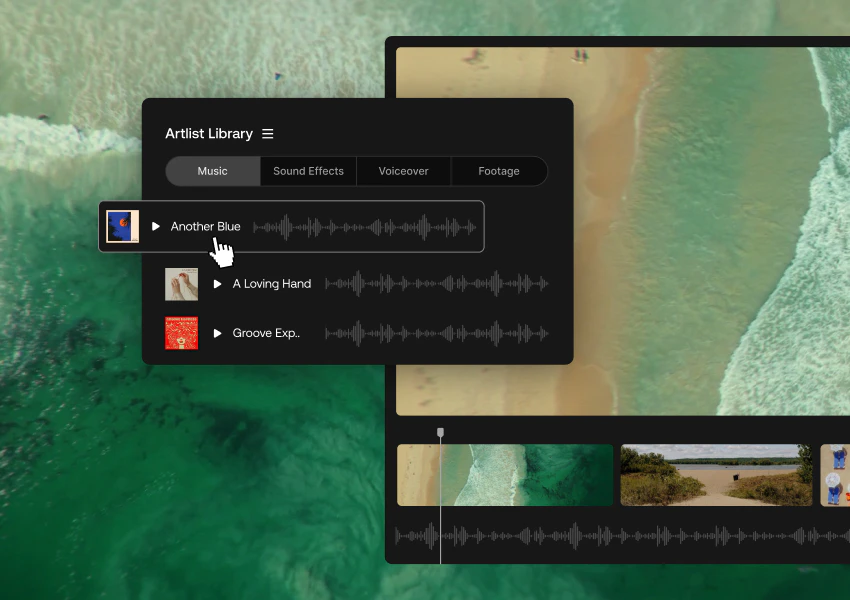
- Music & SFX – add your soundtrack and sound effects early so that you can edit to the beat and maintain a consistent rhythm. Artlist is home to tonnes of royalty-free music as well as plenty of other assets including SFX and various templates.
- Color – Apply basic color correction for balance, then add grading for style and mood.
- Captions – Include on-screen captions or subtitles to boost accessibility and help viewers watch without sound.
- Thumbnails – Create a bold, eye-catching thumbnail that clearly conveys your video’s topic.
- Upload – When it comes to how to upload YouTube videos, you want to export in YouTube’s recommended settings, then upload with an optimized title, description, and tags.
- End Screen & Cards – Add clickable elements to guide viewers to other videos or playlists.
- Analytics – After publishing, review your analytics to see what’s working, then adjust your future edits based on audience behavior.
Wrapping up
The right editing software isn’t about chasing the most expensive or feature-packed option — it’s about finding the one that fits your workflow, skill level, and creative goals. Whether you’re cutting quick shorts on your phone or crafting cinematic long-form videos on a desktop, the tools we’ve covered here give you everything you need to produce professional YouTube content in 2025.
Start by experimenting with a couple of options from this list. See which one feels most natural and helps you work faster without getting in the way of your creativity. And remember — great editing is only part of the equation. Pair your visuals with high-quality, royalty-free music and sound effects from Artlist, and you’ll have videos that not only look the part, but sound unforgettable