How to choose the right music BPM for your video

Highlights
Video editors will tell you that viewers instinctively know when an edit works or doesn't, even if they lack the terminology or expertise to express why. Whether or not you've considered "BPM" (beats per minute) in your own editing, there's a good chance you intuitively know the impact it has on the tone and feel of a video project. If an exciting video needs "faster" music or a romantic scene needs a "slower" theme, you probably don't mean that the songs need to end sooner or last longer. You're referring to the pace of the music, and that's where BPM comes in.
What is music BPM?
Not to be confused with the medical term to do with blood pressure, BPM is a count of the number of beats a song has per minute. As in this hilarious example from The Office, if you click your fingers along to "Stayin' Alive" by the Bee Gees, you'll end up clicking much more than if you clicked to the beginning of "I Will Survive" by Gloria Gaynor. This is because "Stayin' Alive" has a faster pace and a higher BPM.

While a song's BPM will be a specific number, generally between 20 and 200, songs with similar BPMs can be grouped into categories referred to as tempos. On Artlist, you can search for songs with a particular BPM if your project needs one. For example, if you need music to pulse in time with a ticking clock, search for a song with exactly 60 BPM. While tempos do have classical Italian terms (lento is slow, andante is medium, allegro is fast etc.), on Artlist, these categories are simply slow, medium-slow, medium, medium-fast and fast.
Choosing the right BPM for you
Once you're in Artlist, head to the Music section in the Stock Catalog, and open the Filters panel. You'll find the BPM filter alongside other options including mood, genre, and theme.

From there, you have a couple of ways to narrow your search. You can select a tempo category with a single click to instantly filter by broad speed range. Your options are:
- Slow (20-70 BPM)
- Medium-slow (70-90 BPM)
- Medium (90-110 BPM)
- Medium-fast (110-130 BPM)
- Fast (130-200 BPM)
If you need something more precise, use the BPM slider to dial in an exact number or set a custom range. This is useful when you're cutting to a specific beat or syncing music to a particular moment in your edit. Either way, the filter works alongside your other search parameters, so you can layer BPM with genre, theme, or mood to get to the right track faster.
To hear the difference between these tempos, take a listen to the Artlist songs below:
Slow (from 20 - 70 BPM)
Medium-slow (70 - 90 BPM)
Medium (90 - 110 BPM)
Medium-fast (110 - 130 BPM)
Fast (130 - 200 BPM)

Why BPM is important for your background music
Now you know what BPM is and its impact on song choice, so let's take a look at how best to use it in an edit. Below are 2 examples of videos with very different subject matters and completely different approaches to BPM.
Example 1: Fast tempo
In this first example, a story from the Artlist stock footage catalog ("Boxing Match" by LACOFILMS) is in need of a lively, exciting edit. By filtering for the Medium-fast tempo option, and then by theme (Sports & Fitness) and genre (Hip Hop), you can find "Damage" by Nyron, a song that would work perfectly for a story about boxing.
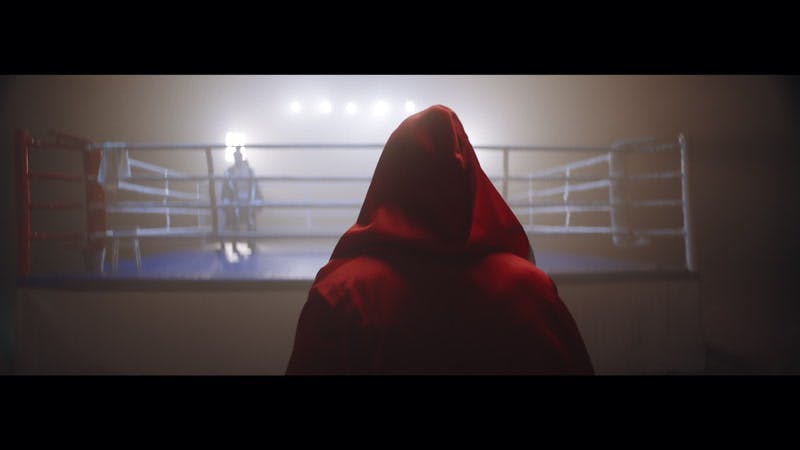

When editing to this song, you can use its pace to give your cuts a rhythm, but it's also a good idea to break that rhythm regularly to avoid a predictable edit. It's not all about cuts, so you can also keep up the energy by making punctuated action within the footage fall in line with the beat (e.g., a punch landing on a beat).
Example 2: Slow tempo
In this second example, the beautiful underwater footage shot in Yucatan from Wind Collective needed a peaceful, calming edit. By searching for a Slow tempo and then filtering further by theme (Nature), you can find "Chemtrails" by Sémø.


Example 3: "Wrong" tempo
To really show the impact that pace and song choice make on a video, take a glimpse at what these examples would look like if you keep everything else the same but swap their BPMs around.
While there are a few moments that work in both cases, these videos mostly feel hard to watch: the subject matter and the music leave you wanting 2 different things from the edit. Sometimes, however, the obvious choice isn't always the best one, so let's discuss some other tips for choosing the right BPM for your own video.
Tips for choosing the right BPM for your video
Here are a few tips to keep in mind for trying to choose the best background music for your videos.
Use BPM in combination with other filters on Artlist
It's not quite as simple as choosing a fast-paced song for exciting scenes and a slower song for underwater scenes. Fast-paced music can be stressful, happy or scary, while slow-paced music can be relaxing, romantic or scary.
On its own, searching by BPM will get you a song with the right pace for your video, but try filtering by theme or genre to find songs a little further outside the box that might be ideal for your scene. This will also speed up the process of finding that perfect song by narrowing your options and limiting the number of less suitable tracks you'll listen to before you find the one.
Sometimes an unconventional BPM is the best choice
While visuals with faster action usually need a quicker tempo and vice-versa, exploring whether an unconventional BPM choice could work for your own project is good. Sometimes it's the right choice to subvert expectations: a strong contrast between the music and the action of the visuals can really work, especially when the other qualities of the song complement the scene.
A good example of a low BPM working with a very intense edit would be the following scene from Interstellar. It has a man ejecting his own spaceship into a black hole (it doesn't get much more intense than that), but the BPM sits at just 59.
Though the tempo is slow, the music has other qualities that make it particularly intense: the volume and the use of a full orchestra. Meanwhile, the slow tempo helps make ejection-into-a-black-hole begin to feel inevitable, and helps you feel Coop's calmness as he accepts his fate.
To take an example on the opposite end of the spectrum, watch the incredible music video for LCD Soundsystem's "Oh Baby," directed by Rian Johnson. This song has a whopping 169 beats per minute. While it does start off with several very quick cuts and lots of fast-paced action (in this case, mathematical calculation counts as fast-paced action), the majority of the video has long takes and isn't exactly action-packed. But watch it, and it works perfectly.
Just as the scene from Interstellar relies on other musical qualities to enhance its intensity (rather than just BPM), "oh baby" has long, sustained vocals and synths which contrast nicely with the rapid underlying beat. The result is a song that works just as well with quick cuts as it does with long ones, allowing for faster action when needed and more thoughtful storytelling when not.
Prompt for your BPM with Artlist AI Music
If you're using Artlist AI Music to generate a track rather than browse the library, BPM isn't something you leave to chance. Both Lyria 3 and Lyria 3 Pro — the AI models behind Artlist AI Music —respond well to tempo instructions, and you can set BPM directly as a parameter when building your prompt.
This makes it straightforward to generate a track that's built around your edit from the start, rather than finding something that roughly fits and hoping the pace works. If you need a track at exactly 90 BPM for a travel montage, or something pushing 140 BPM for a high-energy product reel, you can specify it. Here's an example prompt that puts BPM front and center (instrumental and with lyrics):
Prompt: Upbeat electronic track, 128 BPM, driving synth bassline, energetic but not aggressive, suitable for a fast-paced fitness or lifestyle video.
Lyria 3 Pro in particular handles compound instructions well, so you can layer BPM with mood, instrumentation, and purpose in a single prompt and expect the output to honor all of them. It's a useful way to find your tempo and your sound in one go, rather than filtering for pace and then browsing for feel.
Find Your Tempo
BPM is one of the most practical tools in a video editor's kit — whether you're searching a library, cutting to a beat, or prompting an AI to build something from scratch. The right tempo can make a scene feel urgent, peaceful, inevitable, or joyful. And sometimes, the "wrong" tempo is exactly the right choice.
AI Music in Artlist's Toolkit lets you generate studio-quality tracks with BPM built into the prompt. It's a fast way to get music that fits your project rather than music you've shaped your edit around.